
Building connection strings is a common task in an application development. In the previous article, I talked about differences among various connection formats. This brings us to the topic of building a connection string. Most of the time, it’s typically the developer of the application who will build the connection string and then ship it to the end users and the end users typically do not modify the connection string. However, there are scenarios where an application might need a connection string to be defined by the end user or maybe the developer needs a routine to ease the installation/setup of the application. Having to do this via the manual way outside the application can be tedious.
What can we do to make it easier? Depends!
The easy? way: Building connection strings with OLEDB Data Links
OLEDB provides components that makes it relatively easy to invoke and build a connection string using their tools so that we do not have to futz with the intricacies of different providers and their settings. Here’s some VBA code to show how relatively easy it is:
Dim DataLinks As Object 'MSDASC.DataLinks
Dim NewConnection As ADODB.Connection
Set DataLinks = CreateObject("DataLinks")
DataLinks.hWnd = Application.hWndAccessApp
Set NewConnection = DataLinks.PromptNew
Debug.Print NewConnection.ConnectionString
When we run the PromptNew method, we get this dialog:
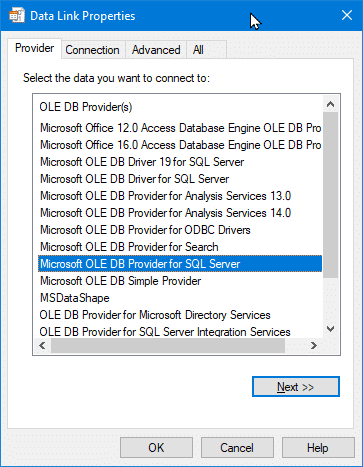
Shazam!
Now suppose we want to modify some existing connection string. We can use PromptEdit instead:
Dim DataLinks As Object 'MSDASC.DataLinks
Dim NewConnection As ADODB.Connection
Set NewConnection = New ADODB.Connection
NewConnection.ConnectionString = "<some initial connection string>"
Set DataLinks = CreateObject("DataLinks")
DataLinks.hWnd = Application.hWndAccessApp
If DataLinks.PromptEdit(NewConnection) Then
    Debug.Print NewConnection.ConnectionString
Else
    Debug.Print "User cancelled"
End If
And we get a variation of the same dialog:
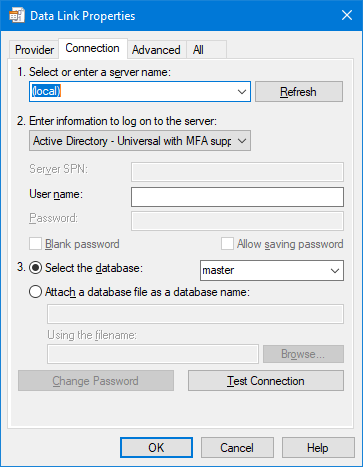
Easy and few lines! However, there are actually a number of gotchas:
- Connection gets closed by the Data Link component. From reading the code, one would be forgiven for thinking that the
PromptNewwould return an opened connection, but no, it’s returned in a closed state, leaving it to you to open it again. The same is true of thePromptEditmethod. - Passwords aren’t included by default. By default, OLE DB sets
Persist Security Infoproperty toFalseand therefore will discard any sensitive authentication information after opening the connection. However, since it returns theADODB.Connectionin closed state, it is no longer possible for you to re-open the connection because you don’t have the password and thus must prompt the user to fill in the password again. The user could be trained to remember checkingAllow saving passwordcheckbox but you cannot easily control this. - Extraneous stuff gets included. When you inspect the
ConnectionStringproperty from the returned connection object, you’ll note it includes several properties that are set to an empty string (e.g.,Initial File Name="";). This would not be a problem except that some providers are known to treat it differently from not including the property and therefore will throw an error if you didn’t remove those unused properties from connection string. - No way to control providers that are allowed to be used. The Data Links object does not provide a mechanism to either 1) disable the provider tab or 2) restrict which providers may be listed in the list. Both are actually possible using OLE DB API but not exposed for easy use within VBA. To manipulate those would require heavy-duty artillery that is beyond the capability of VBA. This means you have no way of ensuring that user doesn’t take an existing connection string that has a certain provider set and giving you back an entirely different connection string with a different provider, which may then cause problems in the application that makes some assumption about what type of the data source it is working with.
Thus, that was the easy way. Not very flexible but it’s pretty easy and quick to get going. You’d probably have to train the users or inspect the connection strings to manage the gotchas identified above.
We can mitigate the issue with the properties with empty string values by stripping them out of the returned connection string and return the sanitized version instead and while we’re at it, we can wrap both PromptNew and PromptEdit behind a single function so we don’t have to deal with an extraneous ADODB.Connection which cannot be used since it is returned closed.
Public Function BuildOleDbConnection( _
    Optional InConnectionString As String = vbNullString, _
    Optional hWnd As LongPtr = 0 _
) As String
    Dim DataLinks As Object 'MSDASC.DataLinks
    Dim TempConnection As ADODB.Connection
    Dim Result As Boolean

    Set DataLinks = CreateObject("DataLinks")

    If hWnd Then
        DataLinks.hWnd = Application.hWndAccessApp
    End If

    If Len(InConnectionString) = 0 Then
        Set TempConnection = DataLinks.PromptNew
        ' Check whether the user cancelled out from the dialog.
        Result = Not TempConnection Is Nothing
    Else
        Set TempConnection = New ADODB.Connection
        TempConnection.ConnectionString = InConnectionString
        Result = DataLinks.PromptEdit(TempConnection)
    End If

    If Result Then
        Dim SanitizedString As String
        Dim OriginalPosition As Long
        Dim NewPosition As Long
        Dim NextDelimiterPosition As Long
        Dim KeyValuePair As String

        If Len(TempConnection.ConnectionString) Then
            OriginalPosition = 1
            NewPosition = 1

            SanitizedString = Space$(Len(TempConnection.ConnectionString))
            NextDelimiterPosition = InStr(OriginalPosition, TempConnection.ConnectionString, ";", vbTextCompare)
            Do Until NextDelimiterPosition = 0
                KeyValuePair = Mid$(TempConnection.ConnectionString, OriginalPosition, (NextDelimiterPosition - OriginalPosition) + 1)
                If Right$(KeyValuePair, 4) = "="""";" Then
                    ' Skip
                Else
                    Mid$(SanitizedString, NewPosition, Len(KeyValuePair)) = KeyValuePair
                    NewPosition = NewPosition + Len(KeyValuePair)
                End If

                OriginalPosition = OriginalPosition + Len(KeyValuePair)
                NextDelimiterPosition = InStr(OriginalPosition, TempConnection.ConnectionString, ";", vbTextCompare)
            Loop
        End If
        BuildOleDbConnection = Trim$(SanitizedString)
    Else
        BuildOleDbConnection = InConnectionString
    End If
End Function
This will then provide you with the prototype for an OLEDB connection string as built by user. You will need to add code as necessary to handle opening the connection especially if it requires a password or check if it’s a provider you want to support.
To address the issue with the security information being stripped out of the connection string, there is a workaround. After obtaining the connection string, you could append Prompt=CompleteRequired; to the connection string, then open it. Here’s a possible code:
Dim CurrentConnectionString As String
Dim NewConnectionString As String
CurrentConnectionString = GetConnectionString ‘Assume it’s a function defined somewhere…
NewConnectionString = BuildOleDbConnection(CurrentConnectionString)

Dim NewConnection As ADODB.Connection
Set NewConnection = New ADODB.Connection
NewConnection.ConnectionString = NewConnectionString & "Prompt=CompleteRequired;"
NewConnection.Open
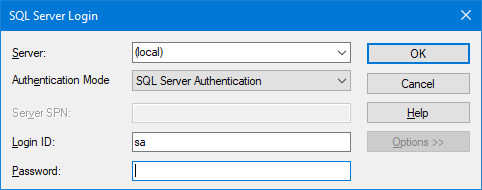
With this modification, you’ll now get a login dialog with the Options button disabled because we specified CompleteRequired which only permits the user to fill in only missing information such as the server, username and password. Had we specified Complete instead, the Options button would be enabled.
Note: More details on the Prompt keyword can be found here and here.
Note that if the connection string can be opened without any further input from users, no dialogs is shown, which makes it very convenient as a way for us to verify that the connection string can be completed without having to persist the password or sensitive information. However, if the user cancels out of the dialog, the Open method will return an error and you must then handle it in your VBA code.
The medium way: Building connection string for ODBC
ODBC on other hand does not have an object equivalent to the MSDASC.DataLinks that can be easily used like we saw above. Why is this? Well, OLE DB is a COM technology so using COM objects comes naturally to OLE DB. On the other hand, ODBC is a “call-level interface” (CLI) API which is another way of saying it’s an API based on C programming language. Forget C++! We are going to press our faces on the cold hard metal! And that’s good news! See, a C API is very easy to work with… it’s merely tedious but it’s easy compared to fighting with opaque objects that won’t let you do what you really want! Even better, the ODBC API uses __stdcall which means we can use VBA’s Declare to hook into ODBC API! So, let’s bust out our ODBC API reference and C header files! If you’re wondering why I called it medium and not hard, that’s because it’s easier than the heavy-duty artillery I mentioned earlier for customizing the Data Links object’s UI.
The starting point is with SQLDriverConnect function. With this function, we can access the same interface that Access uses to build the ODBC data sources.
However, there are few issues we want to avoid. First, we don’t want a DSN. We don’t want to send the users to some default DSN and potentially futz with it. We want them to just fill in the connection string and get back a connection string, without it going into a registry in an opaque format, which would not be also very portable since the other user would have to go through the same set of steps. So, we want to tell ODBC API that we don’t want a DSN, and one way we can accomplish this is to pass the SAVEFILE and DRIVER keywords in our initial connection string to SQLDriverConnect’s InConnectionString. Doing this will bypass the DSN selection dialogs. Unfortunately, it requires that we have selected a driver first. That is where ODBC API comes up somewhat short; it’s not really possible to select an arbitrary driver without going through the DSN setup dialogs and we really, really don’t want a DSN.
Therefore, we need to get a list of all ODBC drivers. Can we do this with ODBC API? Yes! Using SQLDrivers function, we can iterate all installed ODBC drivers on a computer and build a list of available drivers. Here’s an example of how we can iterate an ODBC driver enumerator and build a CSV string that we can then easily plop into a combobox’s or listbox’s RowSource (assuming its RowSourceType is set to Value List):
Public Function EnumerateODBCDriverNamesCSV() As String
    Dim Buffer As String
    Dim Position As Long
    Dim Length As Long

    Dim ReturnCode As Integer
    Dim SQLHandle As LongPtr
    Dim DriverDescription As String
    Dim DriverDescriptionLength As Integer
    Dim AttributesLength As Integer

    Const BufferSize As Long = 2048

    Position = 1
    Buffer = String$(BufferSize * 32, vbNullChar)

    If SqlFailed(SQLAllocHandle(SQL_HANDLE_ENV, SQL_NULL_HANDLE, SQLHandle)) Then
        GoTo ExitProc
    End If

    If SqlFailed(SQLSetEnvAttr(SQLHandle, SQL_ATTR_ODBC_VERSION, SQL_OV_ODBC2, SQL_IS_INTEGER)) Then
        GoTo ExitProc
    End If

    DriverDescription = Space$(BufferSize)

    ReturnCode = SQLDrivers(SQLHandle, _
        SQL_FETCH_FIRST, _
        DriverDescription, _
        Len(DriverDescription), _
        DriverDescriptionLength, _
        vbNullString, _
        0, _
        AttributesLength _
    )

    Do While ReturnCode = SQL_SUCCESS
        If DriverDescriptionLength Then
            DriverDescription = Left$(DriverDescription, DriverDescriptionLength)
            DriverDescription = Replace(DriverDescription, vbNullChar, vbNullString)
        Else
            DriverDescription = vbNullString
        End If

        Length = Len(DriverDescription) + 1

        If (Position + Length) > (Len(Buffer)) Then
            Buffer = Buffer & String$(Len(Buffer), vbNullChar)
        End If

        Mid$(Buffer, Position, Length) = DriverDescription & ";"
        Position = Position + Length

        DriverDescription = Space$(BufferSize)

        ReturnCode = SQLDrivers(SQLHandle, _
            SQL_FETCH_NEXT, _
            DriverDescription, _
            Len(DriverDescription), _
            DriverDescriptionLength, _
            vbNullString, _
            0, _
            AttributesLength _
        )
    Loop

    EnumerateODBCDriverNamesCSV = Left$(Buffer, Position - 1)

ExitProc:
    If SQLHandle Then
        ReturnCode = SQLFreeHandle(SQL_HANDLE_ENV, SQLHandle)
    End If
End Function
Note: If you are unfamiliar with the Mid$() statement, this might be helpful. We also mention this in a past article as well. We use it to avoid reallocating the string variables every time we iterate and add new data by allocating a larger region of memory then filling it and reallocating only if we need more space.
Because ODBC API is a C API, there is lot of ceremony involved by allocating an “environment” (think of it as a context to hold on session variables/settings) and setting it up before we can then actually use the SQLDrivers function. The real meat of the function starts with the first call of SQLDrivers where we pass in SQL_FETCH_FIRST to get the first driver, then loop, repeating the call but using SQL_FETCH_NEXT until we run out of drivers to enumerate. The top part of the loop deals with cleaning up and assigning the driver’s name into the final buffer, while the bottom part re-initializes the temporary buffers and calling the SQLDrivers to get the next item and dirtying the temporary buffers.
One additional advantage of using ODBC API instead of searching registry for a list of installed drivers is that the ODBC API will search in additional places which in turn may present you with additional drivers than you’d see in the HKEY_LOCAL_MACHINE\SOFTWARE\ODBC\ODBCINST.INI subkey.
So now we have the data to drop in our application’s combobox or listbox and let the user select a driver they want to use. So, let’s pass user’s selection into the following function:
Public Function BuildOdbcConnectionString( _
    DriverName As String, _
    Optional ByVal hWnd As LongPtr = 0 _
) As String
    Dim HandleEnv As LongPtr
    Dim HandleDbc As LongPtr
    Dim InConnectionString As String
    Dim OutConnectionString As String
    Dim OutLength As Integer
    Dim TempDsn As String
    Dim PathLength As Long

    If hWnd = 0 Then
        hWnd = Application.hWndAccessApp
    End If

    TempDsn = Space$(261)
    PathLength = GetTempPathW(Len(TempDsn), StrPtr(TempDsn))
    If PathLength Then
        TempDsn = Left$(TempDsn, PathLength) & "Temp.dsn"
    End If

    If SqlFailed(SQLAllocHandle(SQL_HANDLE_ENV, &H0&, HandleEnv)) Then
        GoTo ExitProc
    End If

    If SqlFailed(SQLSetEnvAttr(HandleEnv, SQL_ATTR_ODBC_VERSION, SQL_OV_ODBC2, SQL_IS_INTEGER)) Then
        GoTo ExitProc
    End If

    If SqlFailed(SQLAllocHandle(SQL_HANDLE_DBC, HandleEnv, HandleDbc)) Then
        GoTo ExitProc
    End If

    On Error Resume Next
    Kill TempDsn
    On Error GoTo 0

    If Len(Dir(TempDsn, vbDirectory)) Then
        Err.Raise 55, , "The temporary DSN file at '" & TempDsn & "' could not be deleted. It may be in use. It must be deleted in order for the BuildOdbcConnectionString to function."
        GoTo ExitProc
    End If

    InConnectionString = "SAVEFILE=" & TempDsn & ";DRIVER=" & DriverName & ";"
    OutLength = 1024 ' Per ODBC API documentation, this should be how much we should allocate.
    OutConnectionString = Space$(OutLength)

    If SqlFailed(SQLDriverConnect(HandleDbc, hWnd, InConnectionString, Len(InConnectionString), OutConnectionString, Len(OutConnectionString), OutLength, SQL_DRIVER_PROMPT)) Then
        Dim SqlStateText As String
        SqlStateText = Space$(25)
        Dim NativeError As Integer
        OutLength = 1024
        Dim MessageText As String
        MessageText = Space$(OutLength)

        Dim ErrorNumber As Integer
        Dim ErrorMessage As String
        ErrorNumber = SQLGetDiagRec(SQL_HANDLE_DBC, HandleDbc, 1, SqlStateText, NativeError, MessageText, OutLength, OutLength)
        If ErrorNumber <> SQL_NO_DATA Then
            ErrorMessage = Trim$(SqlStateText) & vbNewLine & NativeError & vbNewLine & Trim$(MessageText)
            Err.Raise vbObjectError + ErrorNumber, "BuildOdbcConnectionString", ErrorMessage
        End If
        GoTo ExitProc
    End If

    If SqlFailed(SQLDisconnect(HandleDbc)) Then
        GoTo ExitProc
    End If

    BuildOdbcConnectionString = Left$(OutConnectionString, OutLength)

ExitProc:
    On Error Resume Next
    If HandleDbc Then
        If SqlFailed(SQLFreeHandle(SQL_HANDLE_DBC, HandleDbc)) Then
            Debug.Print "Memory may have leaked: HandleDbc", HandleEnv
        Else
            HandleDbc = 0
        End If
    End If
    If HandleEnv Then
        If SqlFailed(SQLFreeHandle(SQL_HANDLE_ENV, HandleEnv)) Then
            Debug.Print "Memory may have leaked: HandleEnv", HandleEnv
        Else
            HandleEnv = 0
        End If
    End If
    Kill TempDsn
    On Error GoTo 0
End Function
Again, there are certain ceremonies that must be completed before we get to the meat of the function (I did say working with C API was tedious), mainly setting up the environment and ensuring there is no prior instance of the temporary DSN file. That is necessary because a pre-existing DSN file would then get read in and produce undesired side effect; we want a non-existent DSN file to start with a blank slate.
We also need to have some error handling since ODBC API does not “error” the same way we might be used to with either VBA’s error handling or with Win32’s error. It does not use Err.LastDllError so we must check the return code and calling the SQLDiagRec function to get extended error information. Again, because it’s C API, we must free memory indirectly by releasing all handles we got in our setup.
But once we’ve got the ceremony out of the way, it works! We now can just call BuildOdbcConnectionString("ODBC Driver 17 for SQL Server") and get this lovely dialog!
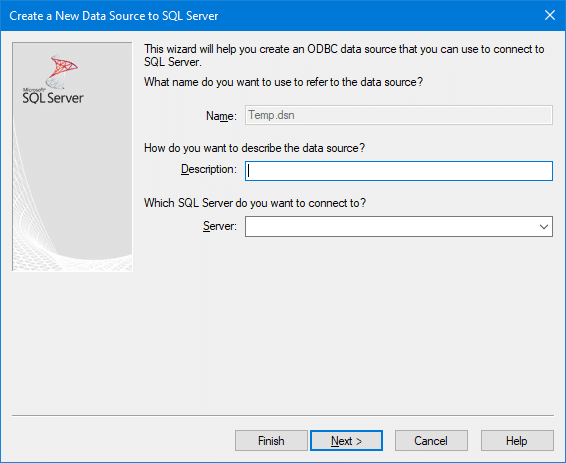
And after successfully building, get the complete ODBC connection string ready for use in the application!
Download the complete module here.
With those routines, we now have a relatively easy way of providing a way to build connection strings from within the application we build. The complete code is provided in a standalone module. We hope you find this helpful. Feel free to leave a comment or questions!

